
Linear is great at tracking work. But when you want to answer “what’s actually happening this week?” — the calendar view isn’t really there. You end up screenshotting a list, pasting it into Slack, or scheduling yet another standup just to get everyone on the same page.
LinCal adds a calendar layer on top of Linear. And one of its most useful features is something a lot of people haven’t discovered yet: shareable calendar links.
How it works
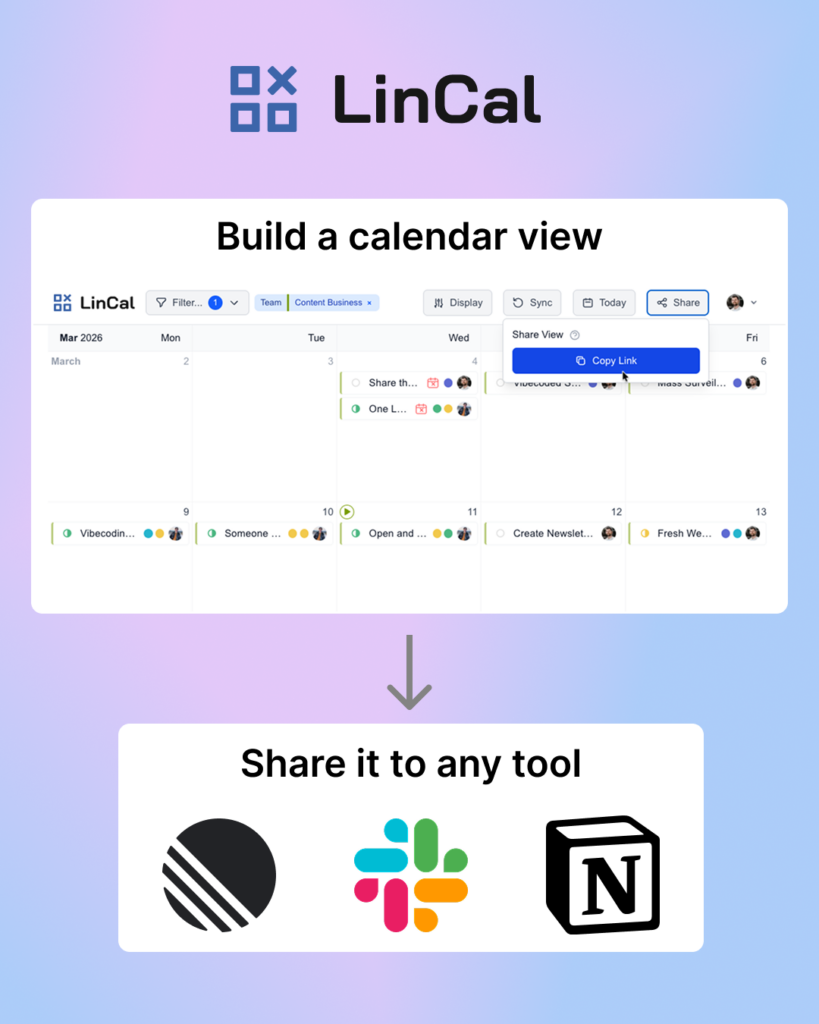
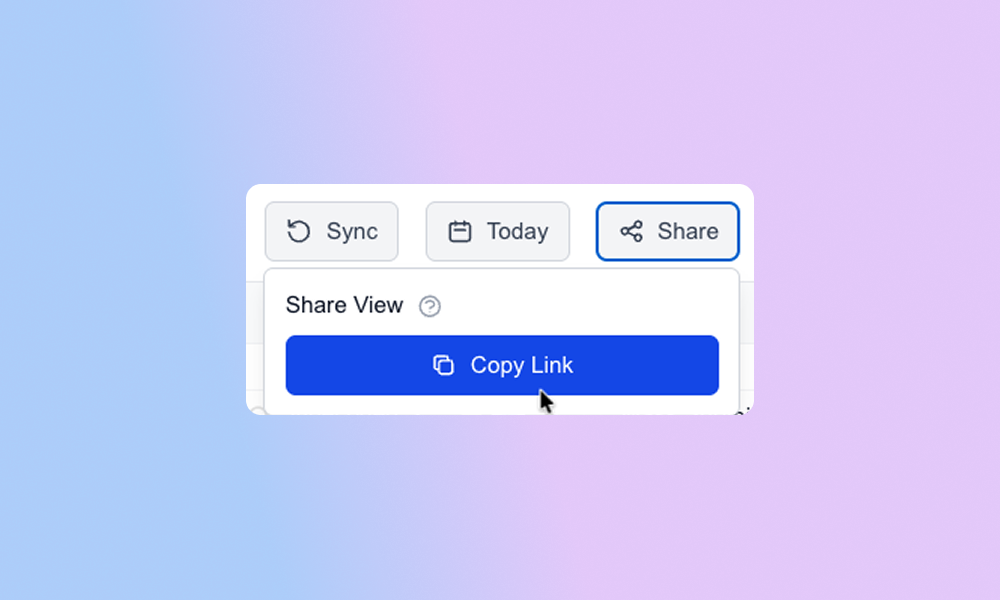
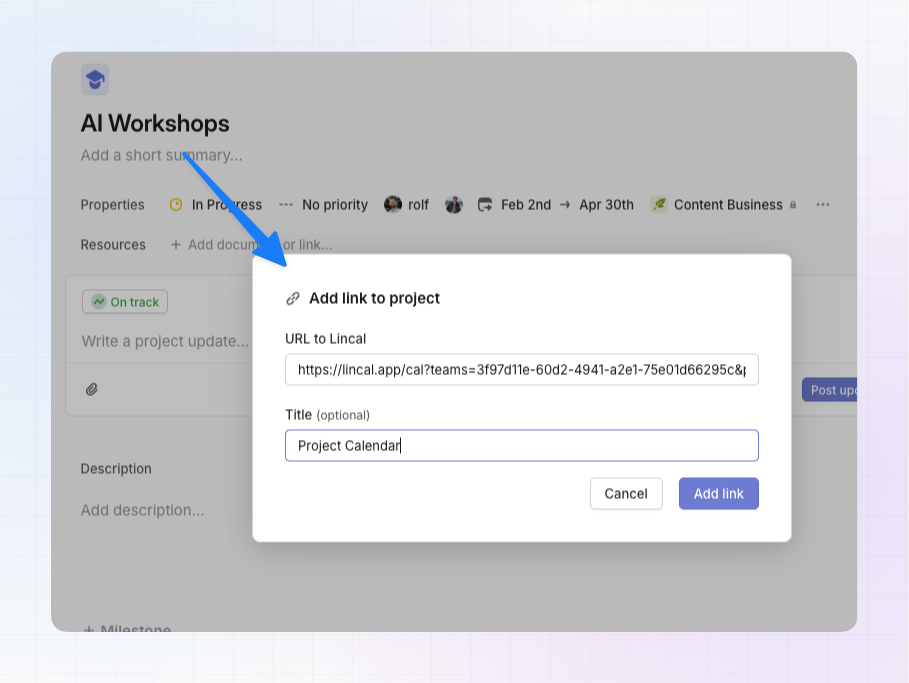
You filter your calendar in LinCal — by team, project, assignee, label, cycle, or any combination of those — and then click Share. LinCal generates a link that opens the exact same view for anyone who clicks it.
Not a screenshot. A live, always-updated calendar that anyone with the right Linear workspace access can open and use.
Display settings travel with the link too: whether weekends are shown, whether completed tasks are visible, whether subtasks are included. So the view your teammates see is exactly the view you intended.
Four ways teams are using this
1. The team calendar
Pick a team from the filter. Everything assigned to that team shows up on the calendar — across projects, across cycles. Share the link and the whole team has a single place to see what’s on their plate.
If you work across multiple teams, you can combine them. Filter for Team A and Team B together, and get a unified view across both. Useful for leads who need visibility across squad boundaries without context-switching in Linear.
2. The cycle calendar
Your team is in a cycle and you want everyone to see what’s due when — not just what’s in the backlog. Filter for the current cycle, click Share, and drop the link into your Linear project description or your team’s Slack channel.
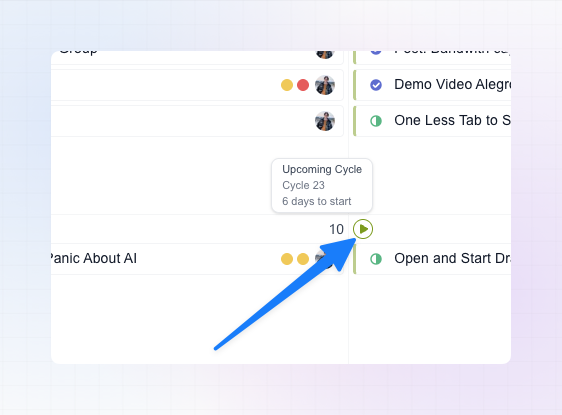
Anyone who opens it sees the live cycle calendar. Due dates, who owns what. No manual updates required. The cycle indicator on the calendar gives you visual feedback when the next cycle starts.
3. The project stakeholder view
You’re running a project and have stakeholders who want visibility without needing to parse a full Linear board. Filter by that project, hide completed tasks if you want a clean view, and share the link.
Now they have a calendar that shows what’s coming up, what’s in progress, and when things are expected to land — without you having to prepare a status update.
4. The content calendar
Labels in Linear often represent a type of work. Filter by a label like Blog Post or Social Media and you get a focused calendar of exactly those issues — what’s planned, what’s in progress, what’s due when.

Useful for content and marketing teams who want to see the month at a glance: “what blog posts are scheduled?” or “what’s on the calendar for social this month?” Filter, share, and pin the link somewhere the team will actually see it.
A few things worth knowing
Recipients need Linear access. This isn’t a public link — anyone who opens it needs to be signed in to Linear with access to the same workspace. Your Linear data stays in your Linear workspace.
The link stays live. It’s not a snapshot. The calendar updates as issues are updated in Linear. The link you share today still works next week, and it’ll reflect whatever has changed.
You can paste it anywhere. Linear project descriptions/links, directly under a specific issue, Notion pages, Slack bookmarks, your team wiki. Anywhere you’d paste a URL.
Try it
If you’re already using LinCal, just set up your filters, hit the Share button in the top right, and copy the link.
If you haven’t tried LinCal yet, you can log in with your Linear account right away, no credit card needed — it takes about a minute to set up.