 Rolf Mistelbacher
Easier View Selection + Faster Loading for Large Workspaces
You can now filter your LinCal calendar by views from Linear.

Use views you already created in Linear
You can now filter your LinCal calendar by views from Linear.
If you already use Linear views to organize work, you do not need to rebuild that setup manually in LinCal. Open the filter menu, select Views, and choose one of your existing Linear views to load the matching issues into the calendar.
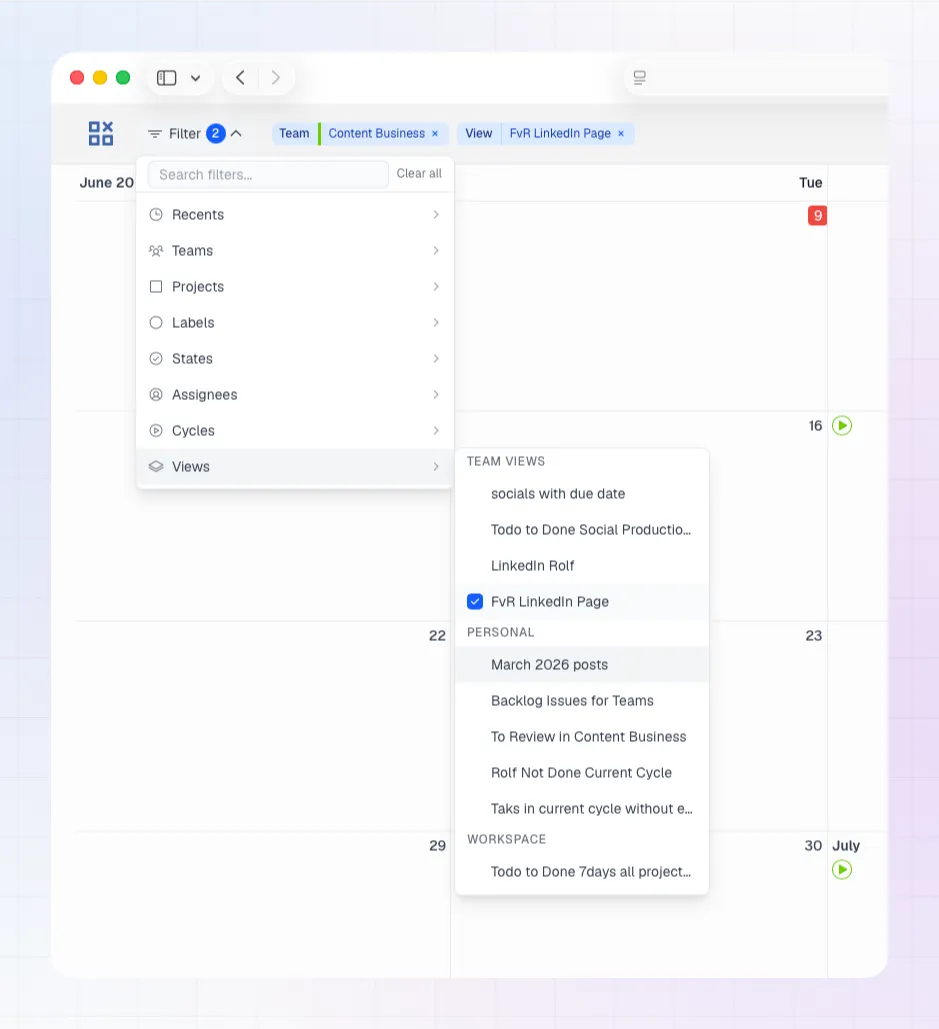
The views available in LinCal follow the context you are in:
- When no team is selected, you see workspace-wide views and your personal Linear views.
- When you select a team, team-specific Linear views for that team become available.
- Selecting a Linear view clears the other property filters so the calendar reflects that view directly.
This makes it easier to jump into familiar planning contexts.
Faster loading for large Linear workspaces
We also changed how LinCal loads workspace data.
Instead of loading every team in the workspace upfront, LinCal now starts with the teams you are a member of. For larger Linear workspaces, this can significantly reduce the time it takes to open the calendar and start working.
This keeps the initial load focused on the teams that are most relevant to you, while still allowing you to reach beyond that scope when needed.
Search the entire workspace when needed
Most filtering starts from your local team index. But sometimes the thing you need is outside the teams you belong to.
You can now search the entire workspace for:
- Teams
- Projects
- Assignees
- Labels
If a result is not available locally, use Search entire workspace to find it across Linear.
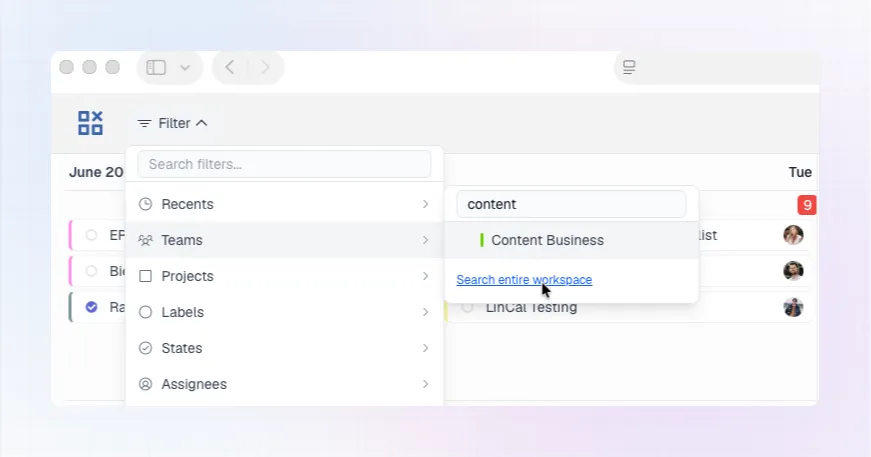
Together, these changes make LinCal faster for large workspaces while making it easier to reuse the Linear views your team already depends on.