 Rolf Mistelbacher
Create and Edit Sub-tasks
Create sub-tasks right on the calendar, together with a new task or on an existing one, and find them in every task's popover
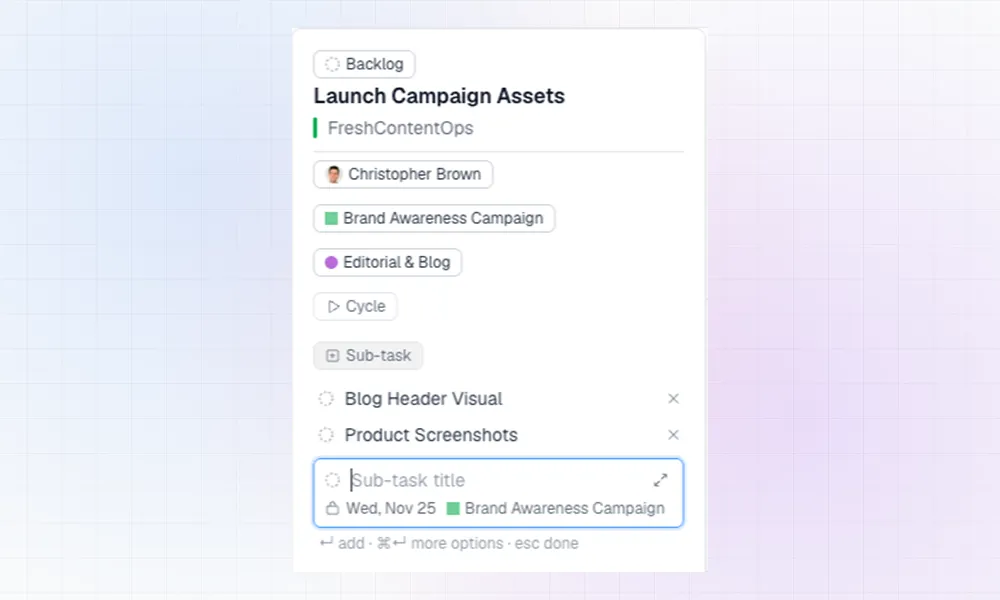
Create a task and its sub-tasks in one go
Start a new task from a day cell, then add as many sub-tasks as you like. Click a draft to add details like status, assignee or project before creating. When you click Create task, the task and all its sub-tasks are created together, just like in Linear.
How creating sub-tasks works:
Add sub-tasks to existing tasks
Click a task and hit Sub-task. Type a title, press Enter, and keep typing the next one. Each sub-task is created right away.
- Need more than a title? Press Cmd/Ctrl+Enter, or click the expand icon, to open the full form with status, assignee, project, labels and more.
- Smart defaults: sub-tasks get the parent’s due date and project. If the parent is assigned to you, they’re assigned to you too.
How editing properties of sub-tasks works:
Find and move your sub-tasks
Every task’s popover lists all its sub-tasks. Click one to open it, and use the back link to return to the parent.
- On the calendar: turn on Show sub-tasks in Display options to see sub-tasks on their days.
- Change a due date: drag a sub-task to another day.
- Nested sub-tasks: open any sub-task and add sub-tasks to it.
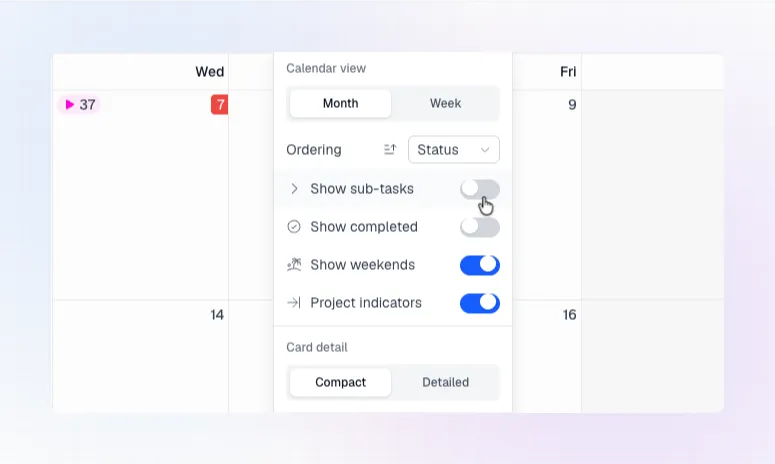
Display options in LinCal
Updated keyboard shortcuts
These keyboard shortcuts work when the task popover is open:
- Cmd/Ctrl+Shift+O — add sub-tasks
- Cmd/Ctrl+Enter — open the full sub-task form from the quick-add row