
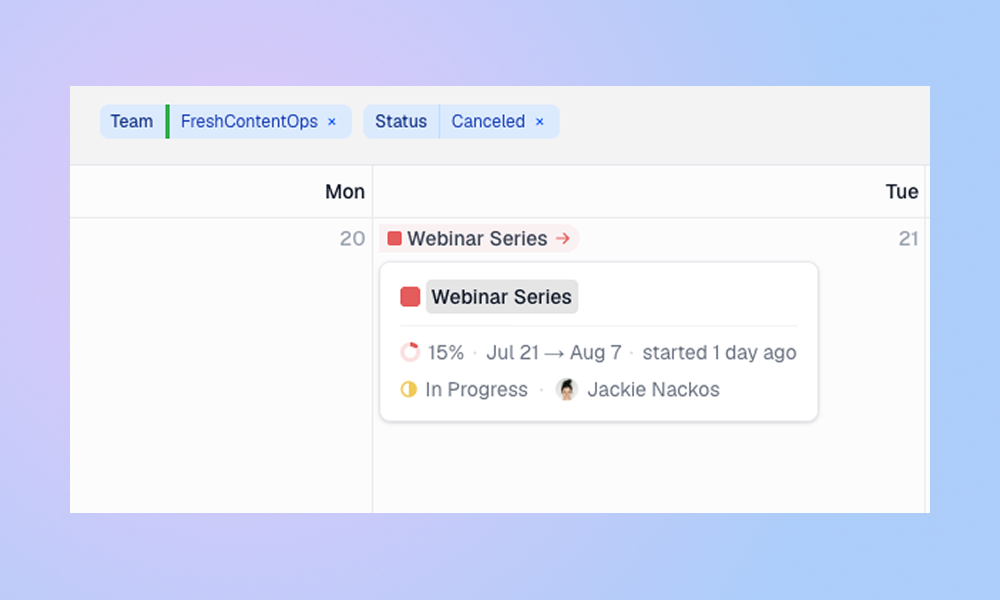
See when projects start and end, spot work outside a project timeline, customize task ordering, show priorities on task cards, and create today’s task with one key.
Project Dates on the Calendar
Projects now appear as pills on their start and target dates.
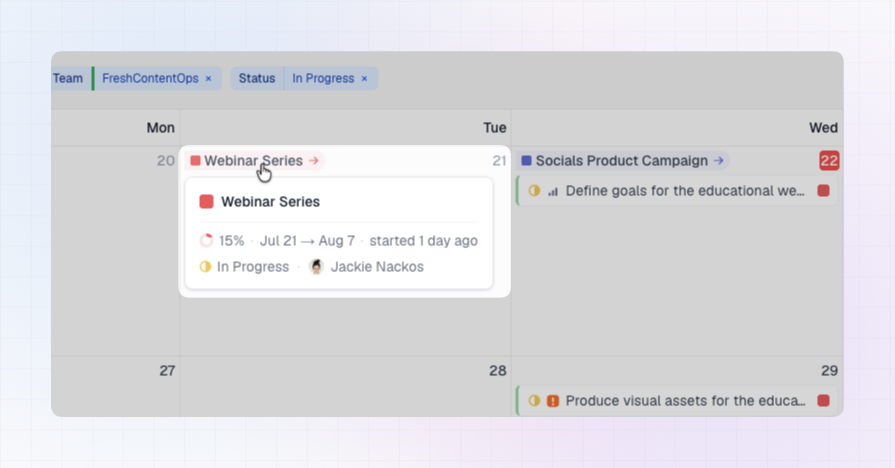
This makes it easier to see when a project begins, when it is expected to finish, and how its tasks fit into that timeframe. Tasks sitting outside the visible project timeline are easier to spot, helping you catch unplanned work or dates that need another look.
Hover over a project pill to see more context, including:
- Project progress
- Start and target dates
- Current status
- Project lead
Click the pill to open the project in Linear.
Project pills use the project color set in Linear. An arrow pointing out marks the project’s start date, while an arrow pointing toward the project marks its target date.
Project indicators are enabled by default and can be turned off under Display → Project indicators.
Project indicators follow your calendar filters:
- Select a team to see the start and target dates of its projects.
- Select individual projects to show only the projects you are interested in.
- If teams and projects are selected together, LinCal shows both the team’s projects and the individually selected projects.
To focus on the timelines of a few specific projects, select those projects and remove the team filter chips.
Only projects with a start or target date are shown. Canceled projects are excluded, and each pill appears directly on the project’s relevant start or target date.
Clearer Cycle Indicators
Cycle pills have a new, more compact style.
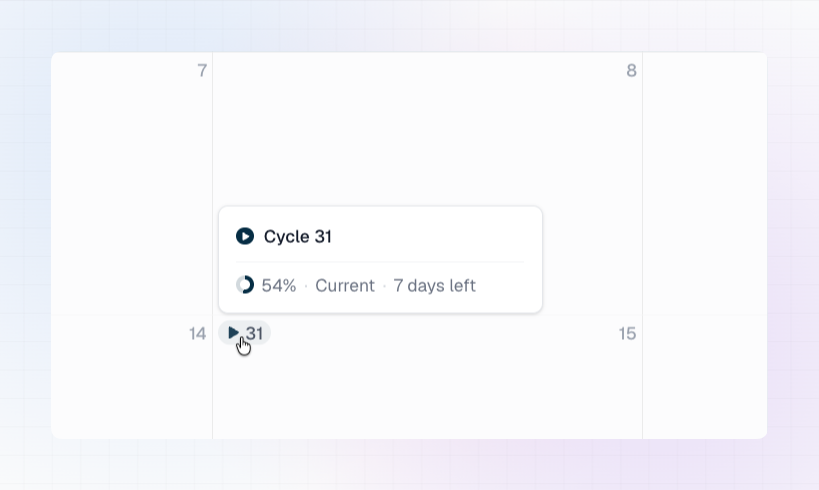
Hover over a cycle to see its progress and whether it is current, upcoming, or completed. You can also see how many days remain, when the cycle starts, or when it ended.
Click a cycle pill to open the cycle directly in Linear.
Sort Tasks Your Way
You can now choose how tasks are ordered on each day of the calendar and in the no-due-date bar.
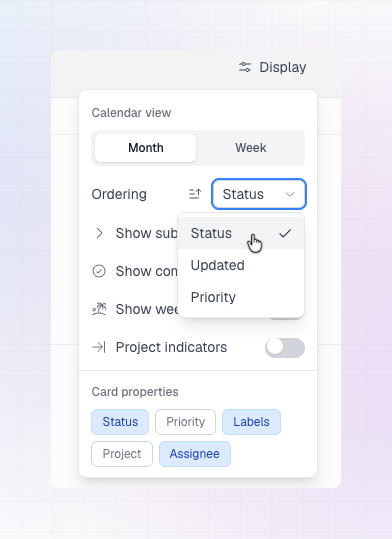
Open Display → Ordering and sort tasks by:
- Status
- Updated
- Priority
You can also switch between ascending and descending order.
The default remains Status, descending. This puts active work first, followed by unstarted and backlog tasks, with completed and canceled work later. Tasks within the same status follow their Linear workflow order.
Your ordering preference is remembered, so you only need to set it once.
Show Priority on Task Cards
Task cards can now display their Linear priority, making urgent and high-priority work easier to recognize at a glance.
Priority is hidden by default to keep cards compact. Turn it on under Display → Card properties → Priority.
Press C to Create a Task for Today
There is a new keyboard shortcut for quickly capturing work.
Press C anywhere on the calendar to open a new task on today’s date. LinCal automatically moves to today first if it is not currently visible.
A small shortcut, but a useful one when you need to add something without interrupting your flow.
Feature requests, feedback? Shoot us an email or use the in-app feedback button in the bottom right corner!