

Linear is built for product teams first. But many content and marketing folks work inside those same organizations, and they use Linear too. With a few small customizations, it works surprisingly well for content work.
This post walks through how to structure your content workflow in Linear, from a single content piece all the way up to how larger teams can organize across channels and campaigns.
Note: Throughout this post I’ll use the term “task” instead of “issue”, the default Linear term. For content teams, “issue” just doesn’t fit the mental model.
A single content piece: tasks and sub-tasks
The building block of any content workflow in Linear is a task with sub-tasks.
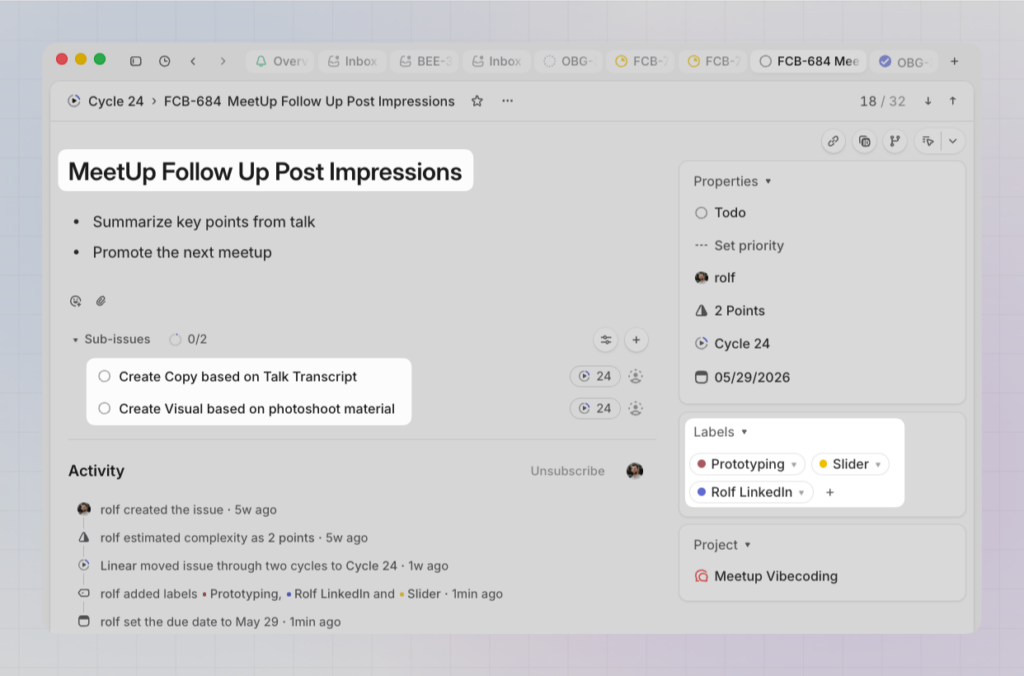
A parent task represents the content piece itself: a blog post, a social media post, a podcast episode. Set the publish date as the due date. The sub-tasks break down the work that goes into producing it.
Example: a social media post
- Parent task: the post itself, due on publish date
- Sub-task: write the copy
- Sub-task: create the visual or video
Using task statuses to manage content flow
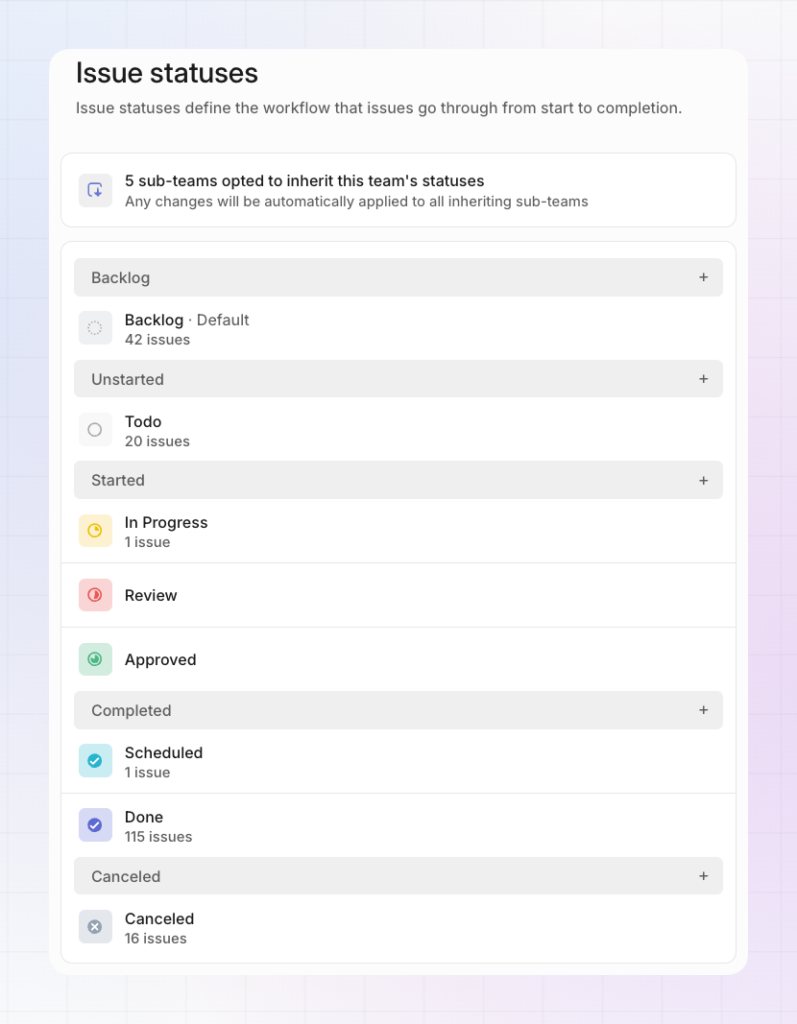
Out of the box, Linear’s workflow states cover the basics. For content work, it’s worth adding a few custom statuses to reflect how content actually moves from idea to publishing.
Here’s a setup that works well:
- Idea: something worth exploring
- In Progress: actively being worked on
- Review: ready for someone to check
- Approved: signed off, ready to schedule
- Scheduled: on the calendar, done (this sits in the “Done” bucket)
Organizing content work: labels vs. projects
How you organize content in Linear depends a lot on your team size and how much content you’re producing.
Small teams: one team, labels for everything
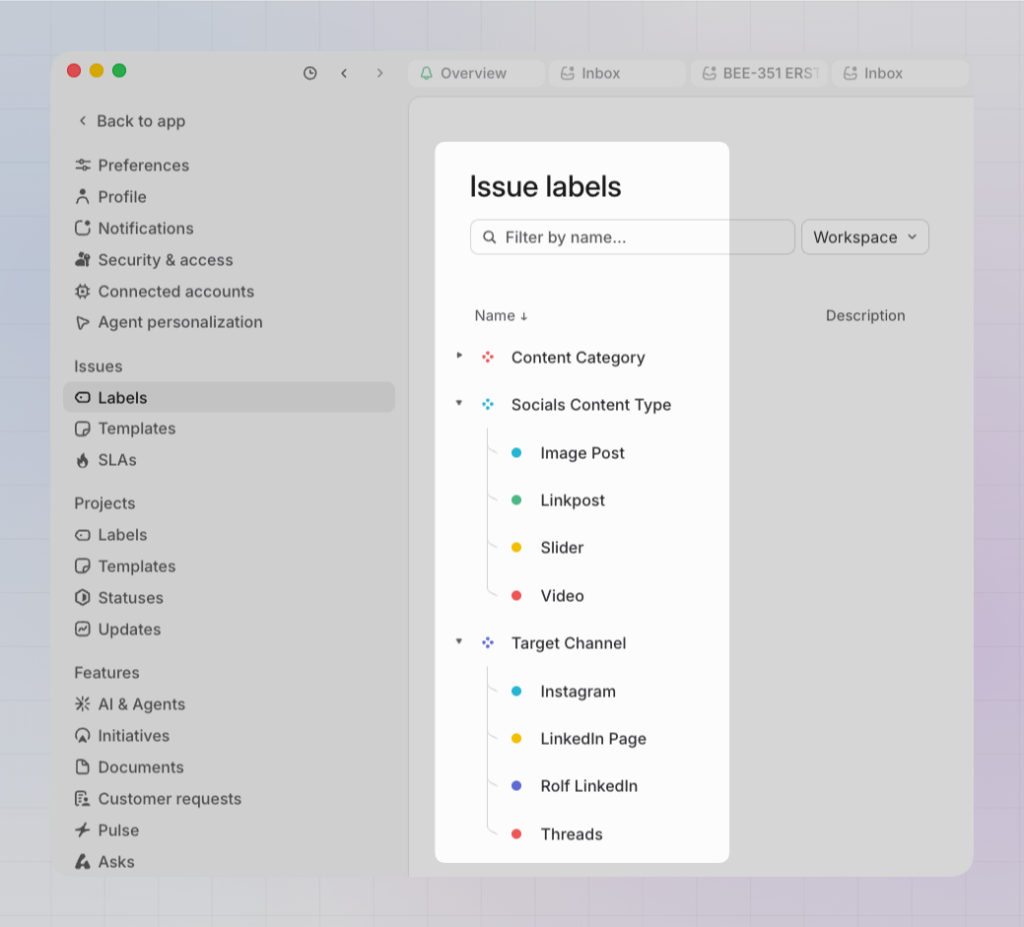
If you’re a small team running content as an ongoing effort, start with a single Linear team and use labels to categorize your content by channel.
Example label setup:
- Blog
- Socials (LinkedIn, Instagram, X)
- Podcast
- Newsletter
Labels can have distinct colors and icons, which makes the board easier to scan. And since a task can have multiple labels, you can layer in additional context like content category, content type, or campaign, without creating extra overhead.
Start with just the labels you actually need. Every label you add is another field to fill in when creating a task. Extend only when the complexity justifies it.
Medium teams: projects for campaigns and channels
If you have a dedicated content team with multiple ongoing workstreams, projects give you more structure.
Example:
- Content Team
- Project: Socials
- Project: Blog
- Project: Podcast
Projects can span multiple teams, which is useful if content work overlaps with product or design. If you want to group several content projects into a curated view, Linear’s Initiatives feature is worth a look.
One thing worth noting: projects don’t need a start and end date, but they’re also a natural fit for time-boxed campaigns. Use them for always-on channels and for one-off campaigns alike.
Large teams: separate teams per channel
In larger organizations where the blog team and the social team rarely overlap, it can make sense to split into separate Linear teams:
- Team: Blog
- Team: Socials
- Team: Webinar / Events
Teams are permanent structures with no end dates like projects have. This makes sense when the work is truly ongoing and the people involved don’t change much.
One note on labels at this scale: labels can be managed at the workspace level, but teams can also have their own label sets. This can get complicated fast. If you’re creating labels that are only relevant to content, create them within the content team so they don’t appear in the task creation dialog for other teams.m.
Plan your work on a calendar
In content work, visibility into timing is everything. When is the next blog post going live? Is there too much happening in one week and nothing the next? Are the social posts and the newsletter aligned?
This is where LinCal comes in.
LinCal is a calendar interface for Linear that lets you view your tasks laid out by due date. You can build a filter that matches your content setup, combining teams, labels, projects, and assignees, and share that view with your whole team via a URL.
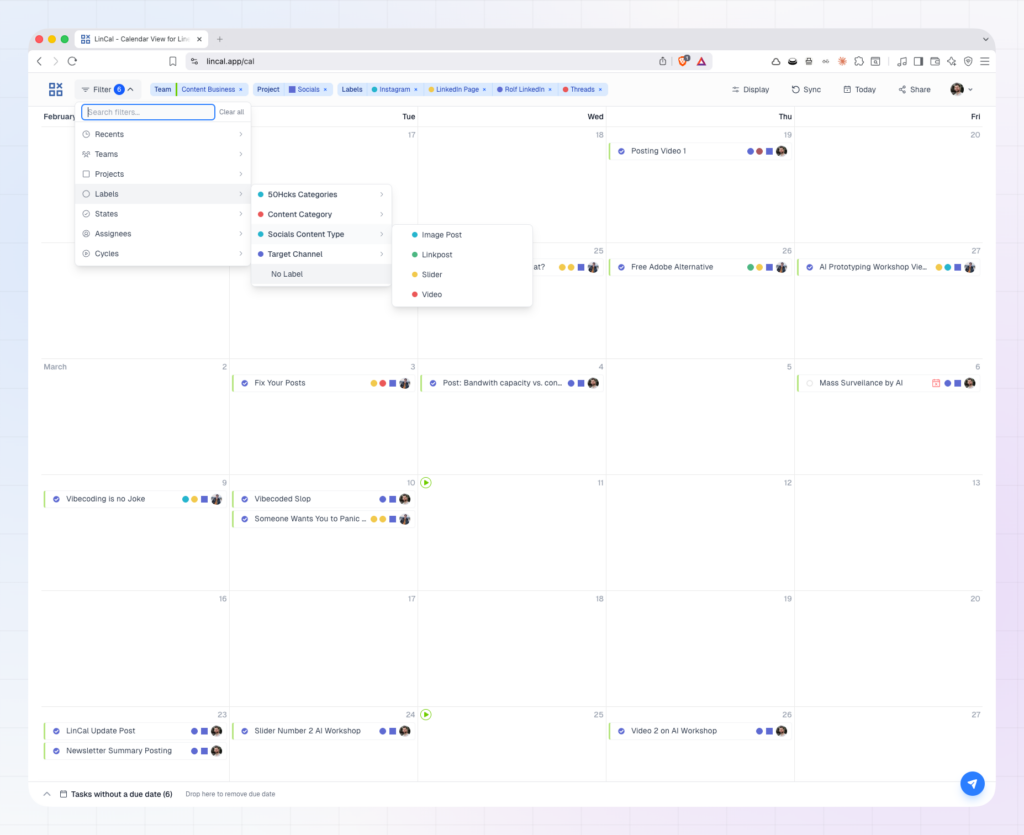
For content meetings and brainstorming sessions, drag-and-drop rescheduling and quick task creation make it easy to move things around and fill gaps on the fly.
Where to start
Linear isn’t built for content teams as its primary audience. But it doesn’t take much to make it work well.
Whatever structure you choose, labels, projects, or teams, start lean. Don’t create five label groups and a project hierarchy on day one. Add structure only when the complexity of your actual workflow demands it. The teams that get the most out of Linear for content are the ones who keep the setup simple enough that everyone uses it.