Rolf Mistelbacher
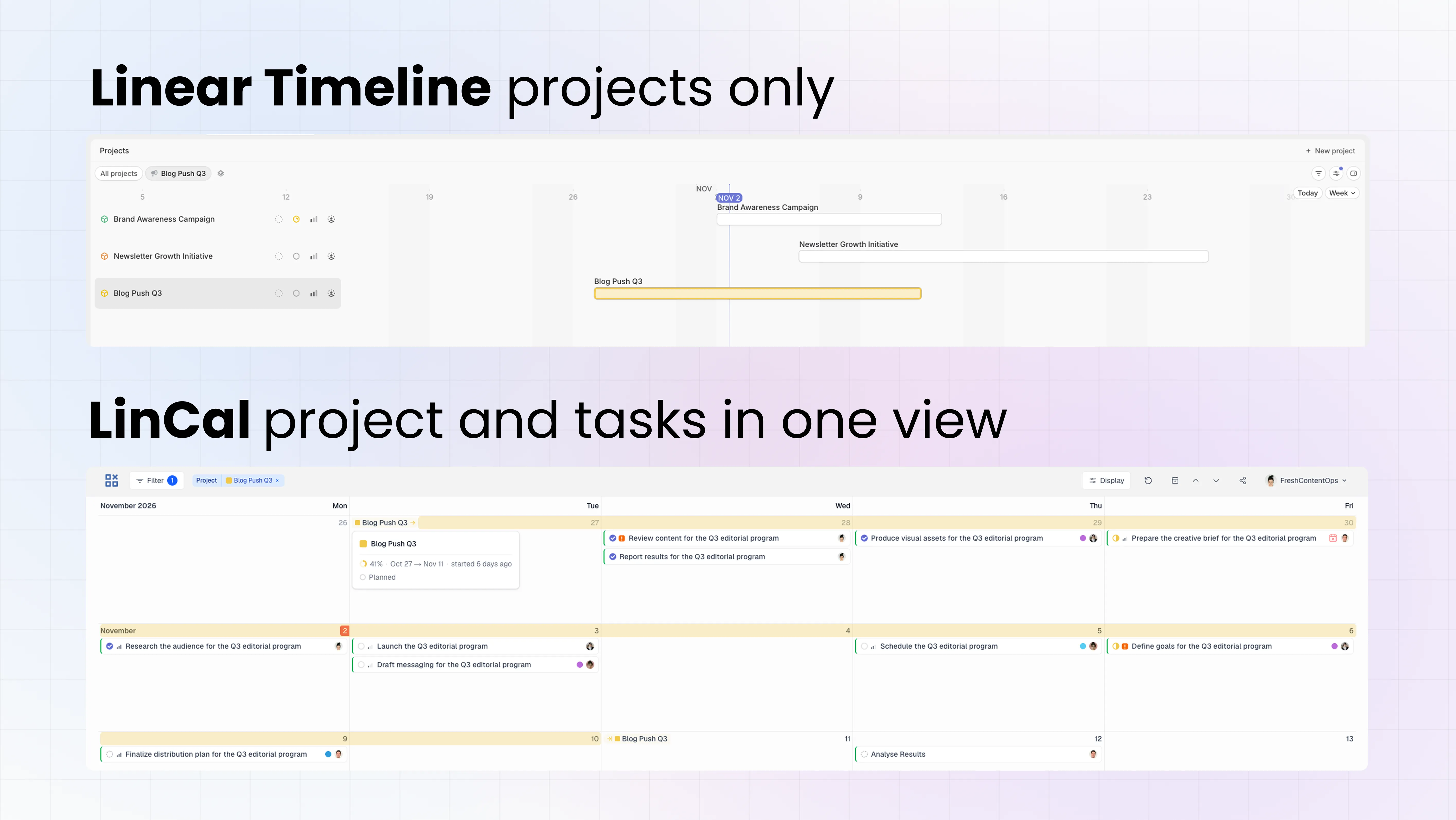
Linear's timeline shows your projects, but not the issues inside them. With LinCal, you see a project's dates, progress and issues together on one calendar.
Linear’s project timeline only shows project metadata. You can see how long a project runs and change its details, but you can’t see its issues or how they’re spread in the same view.
That gets frustrating when you want to plan the work inside a project’s timeline. You can click a project to open its issues in Linear, but then you lose sight of the project’s dates and progress.
Projects on the calendar
LinCal can show project metadata right on the calendar. Once you’ve selected a team, its projects show up as project pills in the calendar cells on the day each project starts and the day it ends.
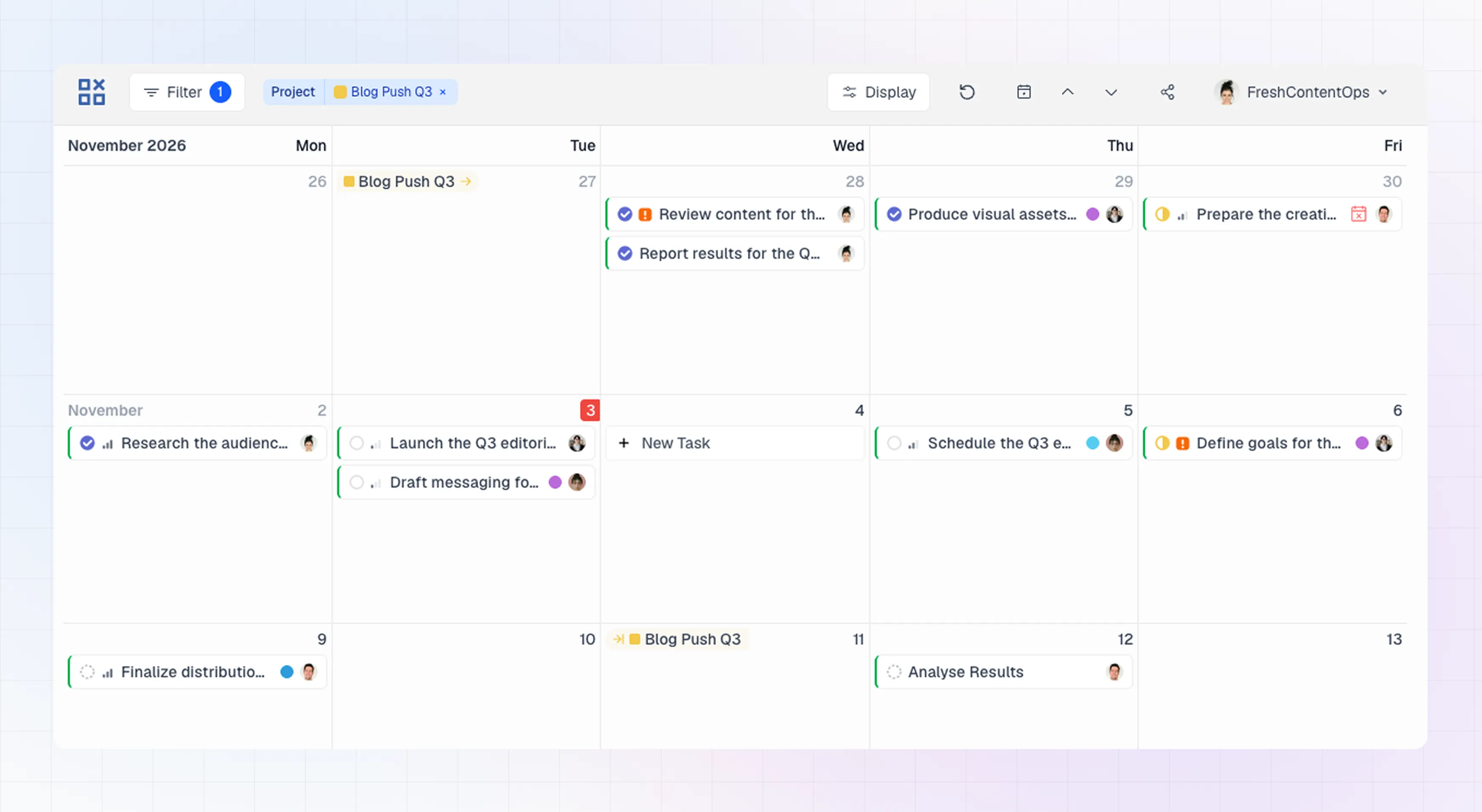
One project and all its issues in one calendar view
You can also select several projects at once. A colored dot (on compact task cards) or the project pill (on detailed task cards) shows which project each task belongs to.
Progress and time left at a glance
Hover over a project pill to see the project’s progress, its start and end dates, how much time is left and its status.
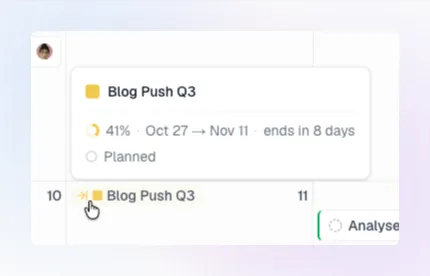
Project progress and time left, right on the calendar
What you can do with it
- Plan inside the timeline. Manage project details in Linear, then switch to the calendar to quickly create all the tasks that fall within the project’s dates.
- Check whether the timeline is realistic. Drag and drop issues to see if the planned work fits between the start and end dates.
- Track progress. See a project’s completion percentage and how much time is left without leaving the calendar.
Try it
If you already use LinCal, filter by a team or project and the project pills appear on the calendar.
If you haven’t tried LinCal yet, you can log in with your Linear account right away. No credit card is needed, and setup takes about a minute.