
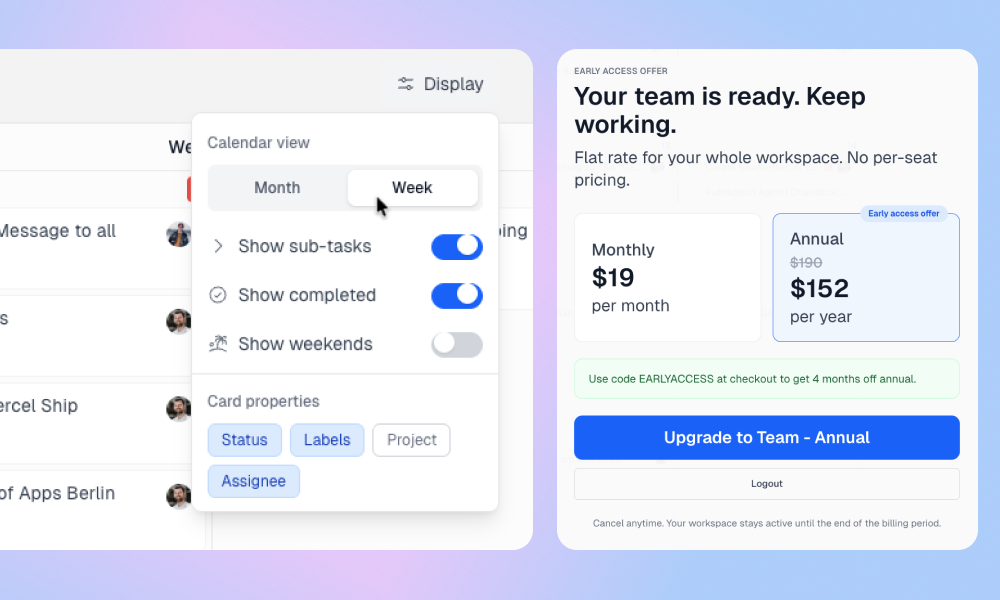
After 12 months of working on LinCal, we’re ready to move out of early access.
What started as a simple calendar view for Linear has grown into a product now used by more than 100 teams to plan work by date, reschedule tasks, share filtered calendar views, and organize weekly planning.
With this update, we’re introducing paid workspace plans, a new weekly view, faster keyboard navigation, and a few smaller improvements to task creation.
Paid plan now available
LinCal now has workspace plans.
There is still a free plan, and paid plans are priced per workspace, not per user. You can choose between monthly and yearly billing:
- Monthly: $19 per workspace/month
- Yearly: $190 per workspace/year
- Early access yearly price: $152 per workspace/year
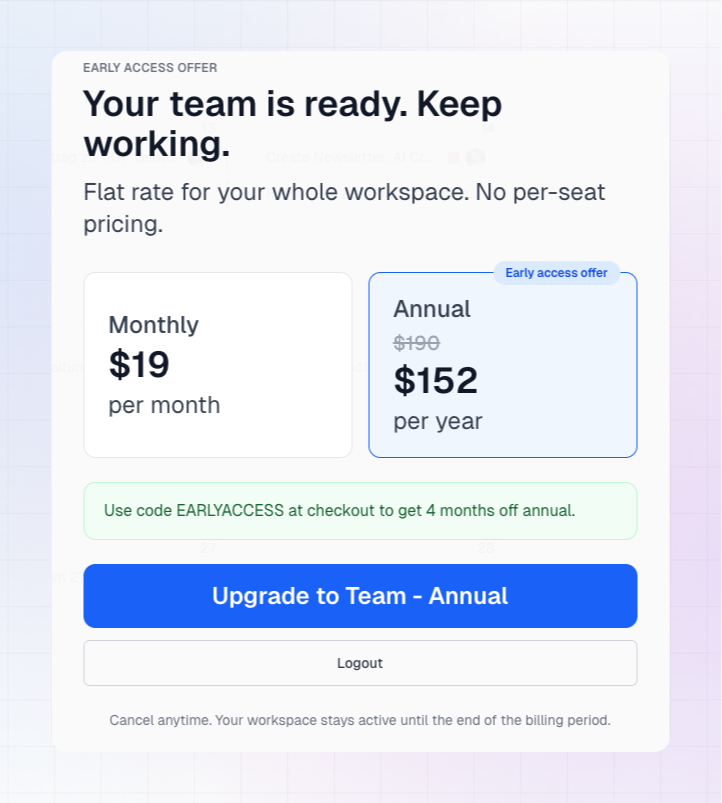
The upgrade path is simple: when a second user from a Linear workspace on a paid Linear plan joins LinCal, a 7-day trial starts for that workspace.
If you are the only LinCal user in a paid Linear workspace, you stay on the free plan. Free Linear workspaces can continue using LinCal for free too.
LinCal only shows upgrade options when your workspace needs them.
Nothing is blocked immediately. You can keep using LinCal during the trial as before. When the trial ends, the workspace can upgrade to continue using the paid plan.
Weekly view
LinCal now has a weekly view.
The month view is useful for seeing the bigger picture, but planning often happens one week at a time. Weekly view gives you a focused layout for answering questions like:
- What is happening this week?
- What needs to move?
- Is the workload realistic?
- What should we focus on today?
Because weekly view has more space than month view, task cards can show more detail. Task titles are not truncated, and projects and labels are written out in full instead of only appearing as icons, making the week easier to scan.
Faster keyboard navigation
We also added keyboard shortcuts for moving through the calendar more quickly.
You can now switch between month and weekly view from display settings, or from the keyboard by pressing M or W, use the arrow keys to navigate through time, and press T to jump back to today.
This makes it faster to move around LinCal during planning sessions without reaching for the mouse every time.
Task descriptions during creation
Task creation got a small improvement too.
When creating a task in LinCal, you can now add a description right away. This is useful when the task needs context, instructions, links, or notes before it is created in Linear.
This is a big step for LinCal
After 12 months of building, learning from early users, and improving the product week by week, we’re excited to move LinCal into its next phase.
Log in to try the new weekly view, keyboard navigation, and task creation improvements. If you have questions about the new plans or feedback about the launch, send us a message, or use the blue button inside the app.