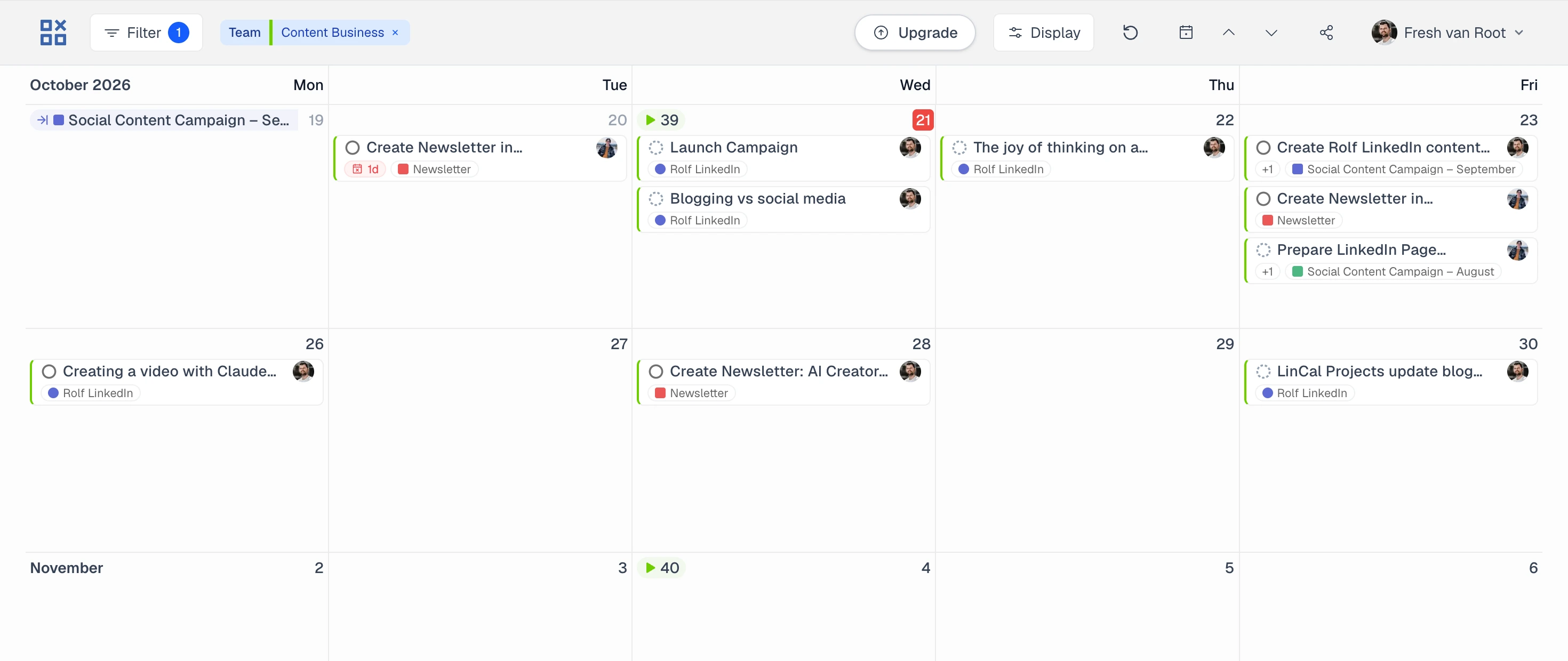
Linear, on a calendar.
See issues, project timelines, and cycles in one shared planning view. Drag to reschedule. Edit without leaving the calendar.
Get started with LinearFree to start • No credit card required • Official Linear integration
Watch the full product demo →Plan, filter, and share Linear work on a calendar
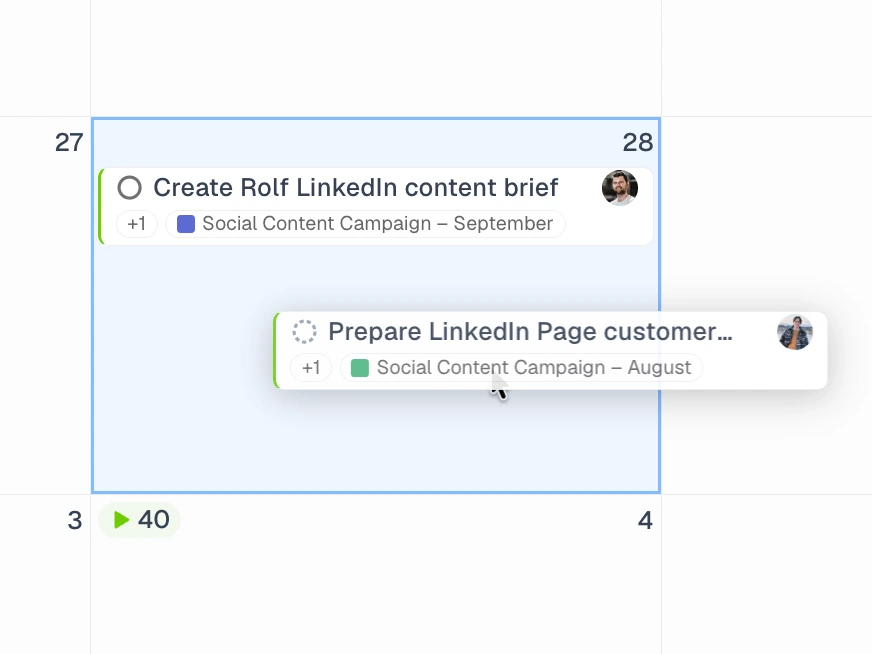
Plan work on a calendar
Create tasks, drag issues to new dates, and keep unscheduled work visible.
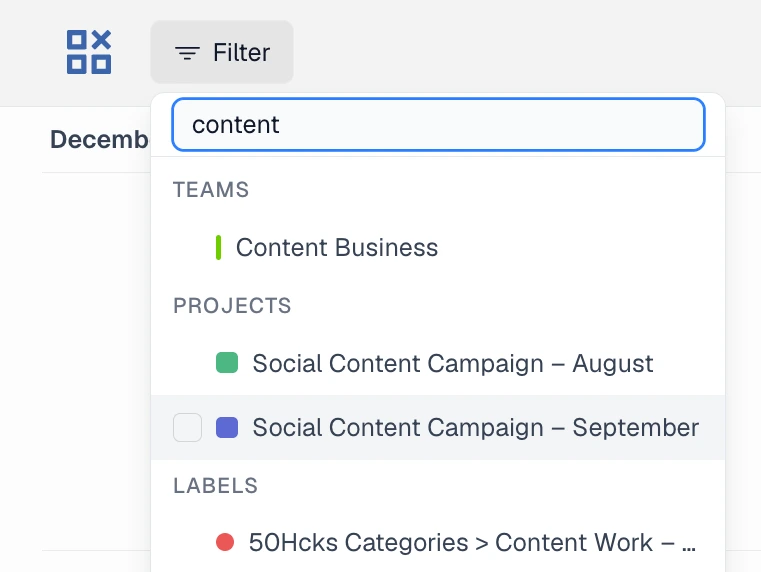
Filter your focus
Filter Linear down to the work you care about. Save favorite views and switch back in one click.

Rolfnow
Here's this week's content plan 👇
 LinCal viewTeam: Content Business · 1 filter
Share the right view
Send a calendar link with filters included, so teammates can open the same view in LinCal.
Built for teams that plan by date.
Every blog post, newsletter, and social post on its publish date.
Set the publish date as the due date. Label by channel, and the month reads like an editorial calendar.
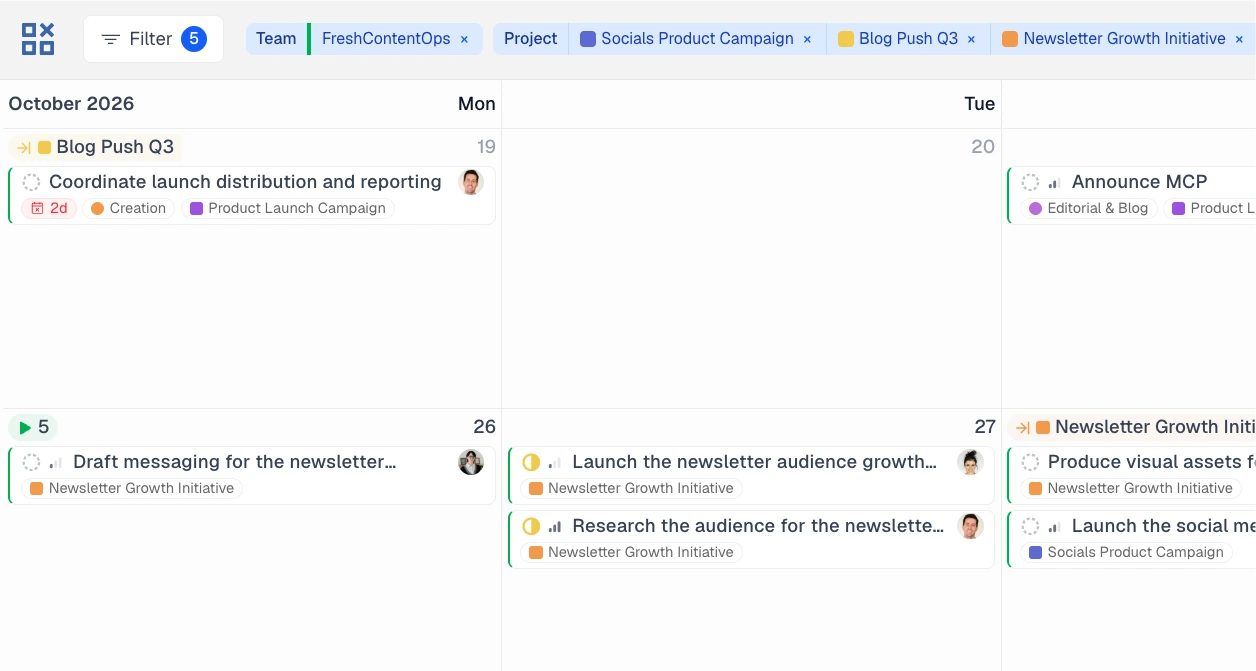
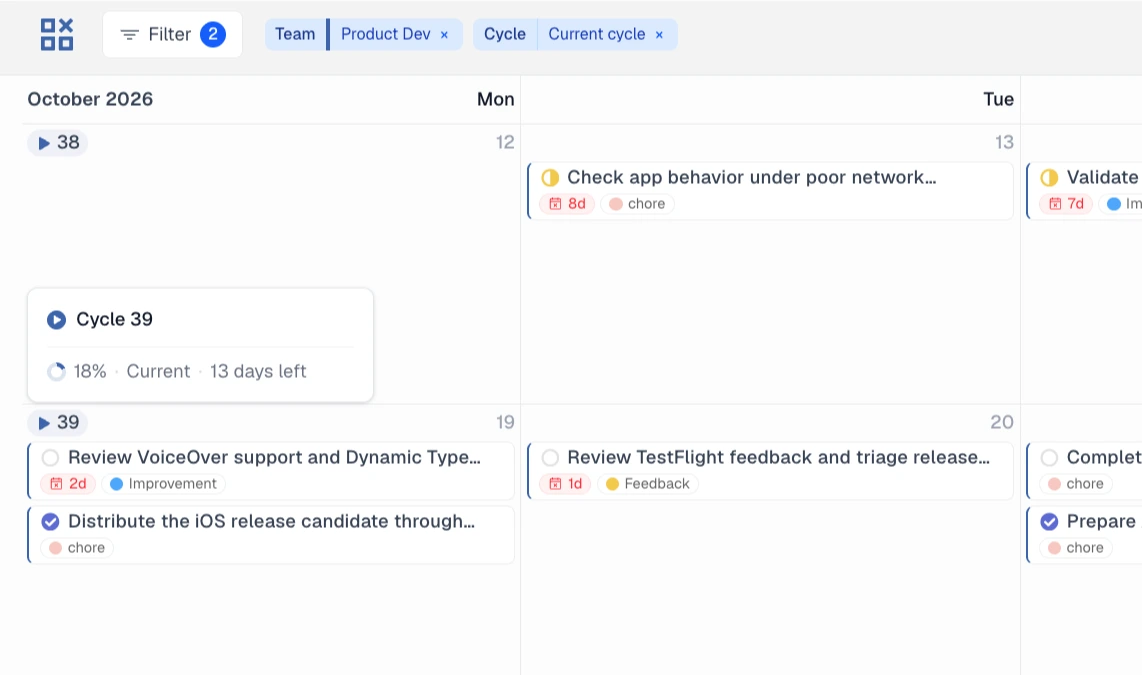
See what is due inside the current cycle, day by day.
Filter to the active cycle and spot crowded days before they become late tasks.
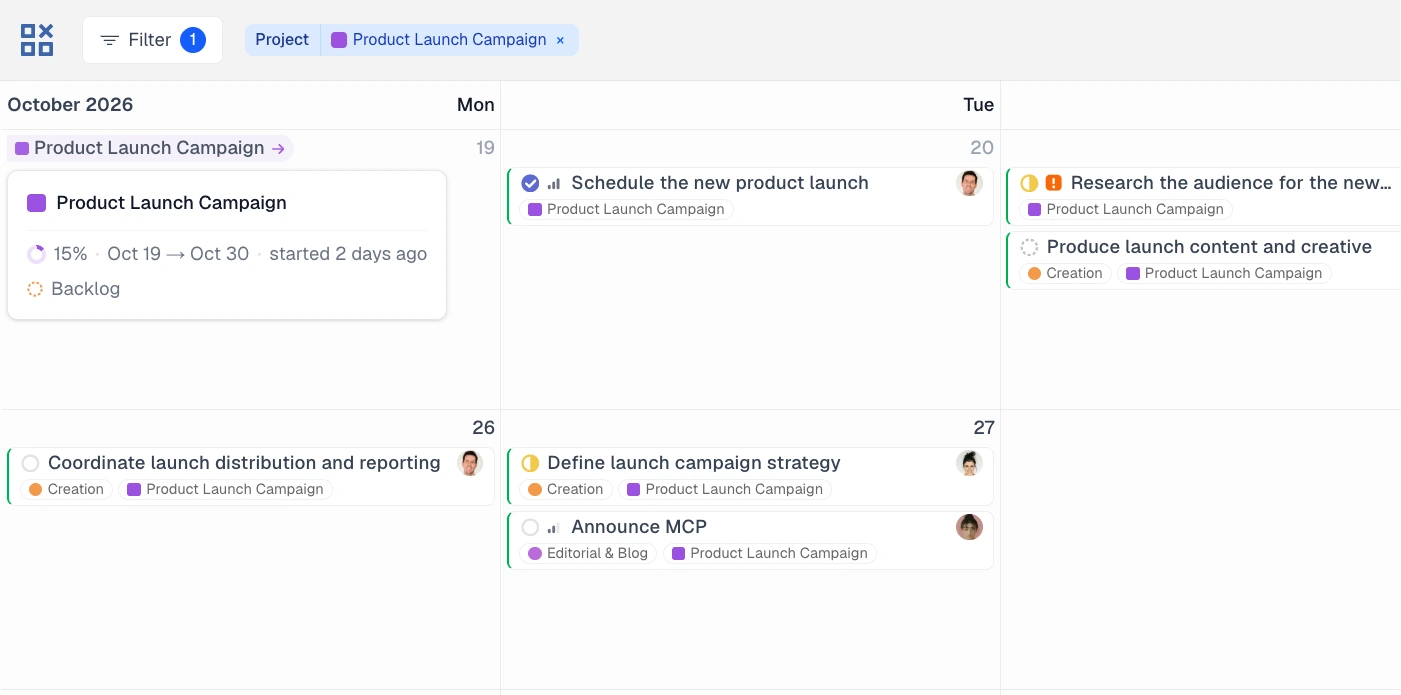
See projects and their issues in one view.
Project start and target dates sit right next to their issues. A view Linear doesn’t offer.
Simple on the surface. Powerful underneath.
Every control for real team planning, without the clutter.
Calendar planning
- Switch between month and week views
- Show project timelines and target dates
- See current and upcoming cycle timelines
- Today navigation and keyboard shortcuts
- Overdue indicators
Task actions
- Drag-and-drop rescheduling
- Create Linear issues on a date
- Update title, status, assignee, project, labels, and cycle
- Keep unscheduled tasks in the bottom drawer
- Delete issues via drag and drop
Focus controls
- Filter by team, project, status, assignee, label, cycle, or Linear view
- Reuse recent and pinned filter combinations
- Show or hide weekends, subtasks, and completed tasks
- Choose which details appear on task cards
- Load existing Linear views into the calendar
Team workflow
- Share filtered calendar views with teammates
- Changes sync instantly with Linear
- Open tasks in Linear when you need the full issue view
- LinCal supports light and dark mode
Your Linear data stays yours.
LinCal never stores or sees your Linear data. It loads directly from Linear’s API in your browser.
Your browserLinCal runs herePay per workspace, not per person.
Free for solo use. When two or more people use LinCal in a paid Linear workspace, it is one flat price for the whole workspace.
No credit card required
Get started with Linear- For all free Linear workspaces
- Also included when only one person uses LinCal in a paid Linear workspace
- Full LinCal access
Covers your entire Linear workspace, including all users. Or $190/year.
Get started with Linear- One flat price for your entire workspace
- Includes all users on your workspace
- 7-day trial, no credit card required
- For paid Linear workspaces where two or more people use LinCal
- Cancel anytime
Free Linear workspaces can use LinCal for free. Paid Linear workspaces only need Workspace when two or more people use LinCal. LinCal will only show upgrade options if your workspace needs them.

Hi, I am Rolf.
I founded LinCal after running my team in Linear and never finding a good way to see work on a calendar. So I built one.
What started as an internal tool is now connected to 600+ Linear workspaces. We’ve launched paid plans, we’re actively building, and we’re here for the long run.
Questions or feedback? Reach me at rolf [at] lincal.app. Or read thefull backstory.
Recently shipped.
Create sub-tasks right on the calendar, together with a new task or on an existing one, and find them in every task's popover
Blocked and Blocking TasksTask cards now show when a task is blocked, or is blocking other work, and a task's status can be edited while creating.
Detailed Task CardsTask cards can stay compact, or show label and project names in full. The filter bar is also tighter, and the workspace name now sits next to your avatar.
Still wondering?
Are the developers of LinCal able to see my data?
LinCal loads all your Linear data directly in your browser. There are no server-side webhooks or data passing through our systems. We never see your issues, updates, or notifications. LinCal only stores your sign-in and settings. Your work data is yours alone.
Does LinCal modify my Linear data?
Yes, but only when you perform actions (drag tasks, create issues). All changes go directly to Linear through their official API.
Do I need a Linear account?
Yes, LinCal works as an enhancement to your existing Linear workspace. You log in with your Linear account; there is no LinCal account.
Does LinCal work with my team?
Yes, each team member can connect their own Linear account and view/manage their issues.
What can I do in LinCal that I can’t do in Linear?
See projects and their issues side by side, plan cycles day by day on a calendar, and drag issues to new due dates. Plus filtered calendar views you can share, and quick task creation right on a date.
Will changes I make in LinCal appear in Linear?
Yes, instantly. LinCal uses Linear’s official API, so all changes sync immediately.
Can I disconnect LinCal from my Linear account?
Yes, revoke access anytime from Linear settings > applications.
When do I need to pay?
Only when two or more people use LinCal in a paid Linear workspace. Then one flat Workspace subscription covers everyone. Solo use and free Linear workspaces stay free, with full access. LinCal shows an upgrade option in the app when your workspace needs one.