 Rolf Mistelbacher
Blocked and Blocking Tasks
Task cards now show when a task is blocked, or is blocking other work, and a task's status can be edited while creating.
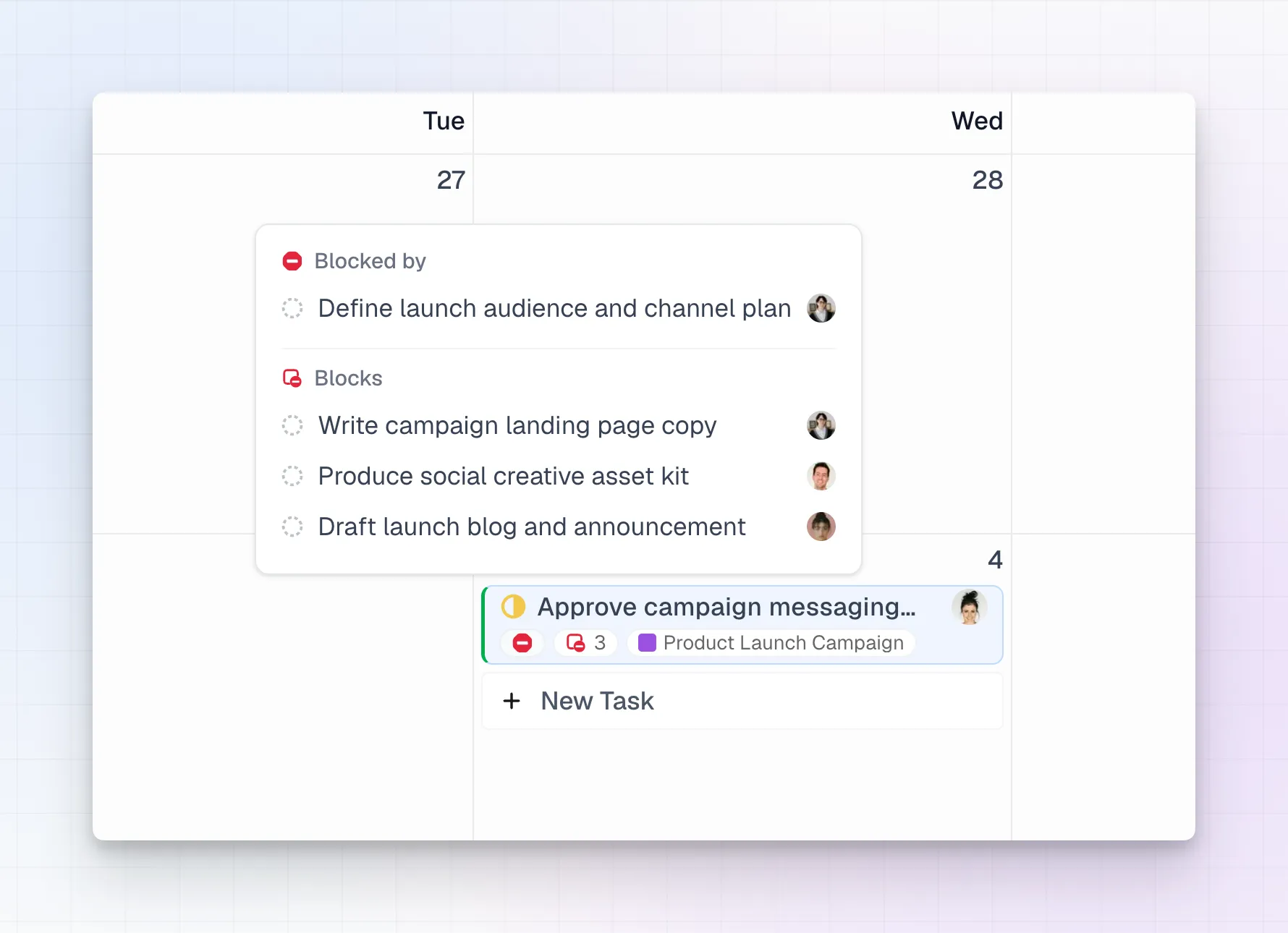
See which tasks are blocked, and what’s blocking them
In Linear, you can mark a task as blocking another task, or as blocked by one. LinCal now shows this directly on your task cards, so you can see at a glance what’s holding work up.

- Compact cards show a small icon when a task is blocked or is blocking other tasks.
- Detailed cards show the same icons, plus the number of tasks when there’s more than one.
- Hover the icon to see the related tasks, with their status and assignee. Click one to open it in Linear.
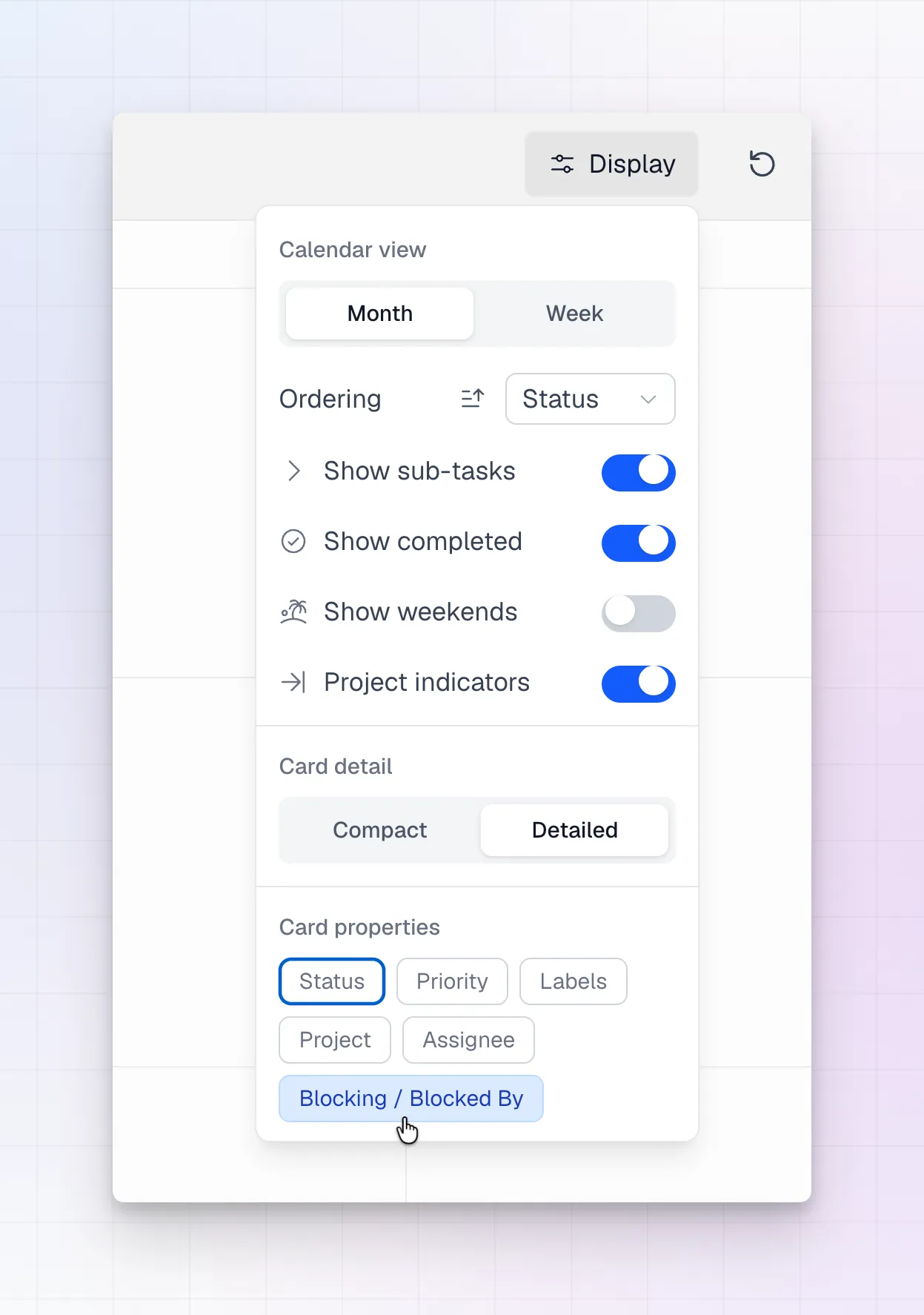
This is on by default. To hide it, turn off Blocking / Blocked By in the display options.
Change a task’s status while creating or editing it
Until now, you could only change a task’s status from the task card. You can now also set the status when you create a task, and change it while the task is open for editing.
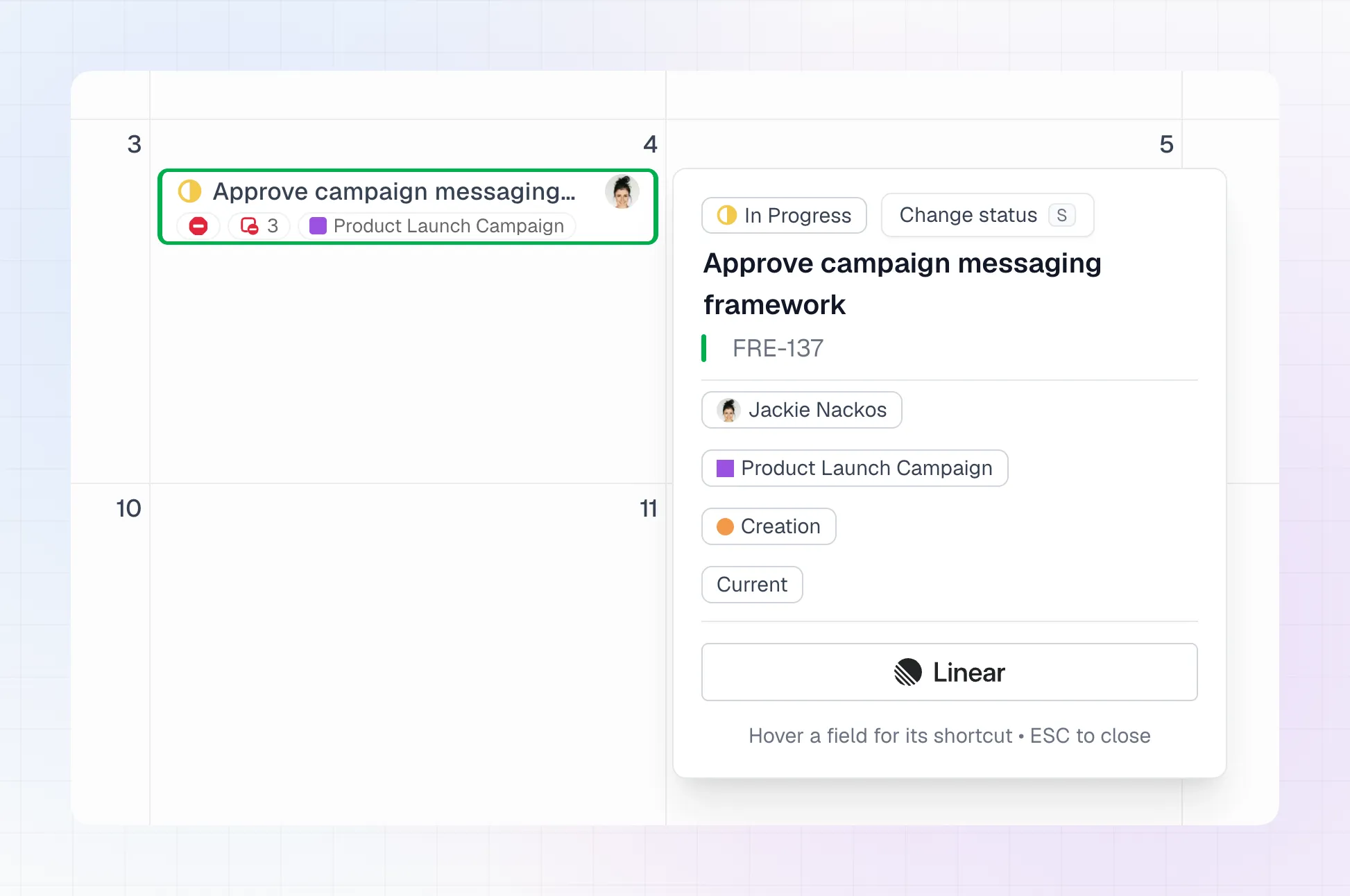
Updated keyboard shortcuts
Fields in the task window used to be opened with number keys. Now each field has its own letter, so the shortcut stays the same no matter which fields are shown: S for status, A for assignee, P for project, L for labels, Shift+C for cycle, and D to jump to the description when creating a task. Hover a field to see its shortcut. Cmd/Ctrl+Enter still creates the task, and Esc closes the window.